Run cashflow analysis from bank statements
Using Prestatech API to run PLEND with bank statements
You can parse PDF bank statements and run our credit report in a few simple steps through our API.
Below, is a diagram that explains the flow of information from client to our server and back to the client. What you need is a client application and a webhook that we can reach.
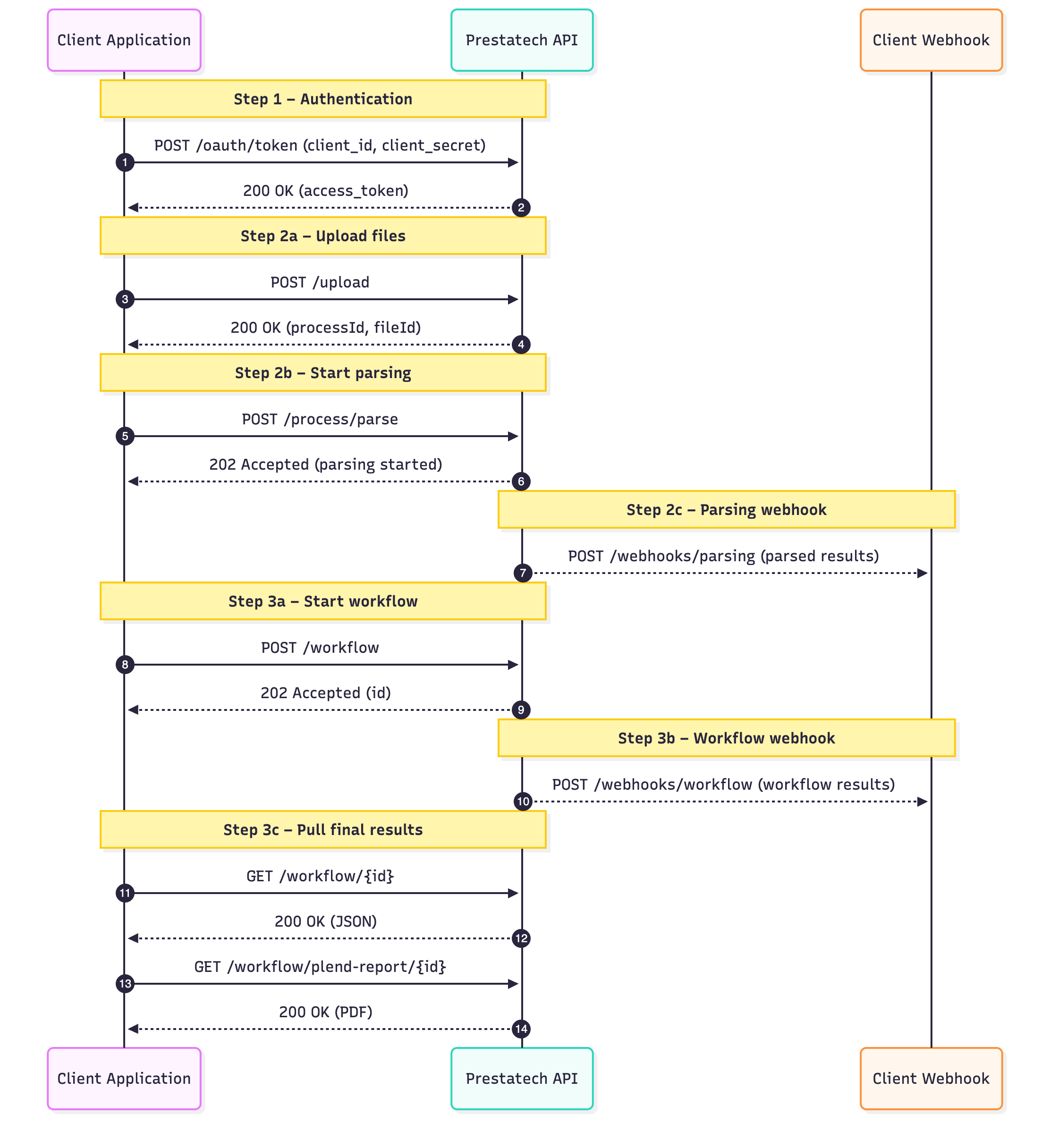
Step 1 — Authentication
Request an access token from the authentication endpoint using your Client ID and Client Secret from your portal subscription page at https://api-portal.prestatech.com/subscriptions. The token is valid for 24 hours — we recommend caching it.
All subsequent calls require the access token AND your subscription key:
| Header | Value |
|---|---|
Authorization | Bearer [your-access-token] |
Ocp-Apim-Subscription-Key | [your-subscription-key] |
Step 2 — Parsing the bank statements
The parsing process is a two-step flow: upload then parse.
2a — Upload files
Call the upload endpoint once per file with: account holder name, bank code (ABI), and file ID. idPratica is your custom identifier per application. The response contains a process_id.
2b — Parse files
Call the parse endpoint with the process_id and file IDs. HTTP status codes: 202 Accepted = parsing in progress; 200 OK = results ready.
2c — Receive callback on webhook
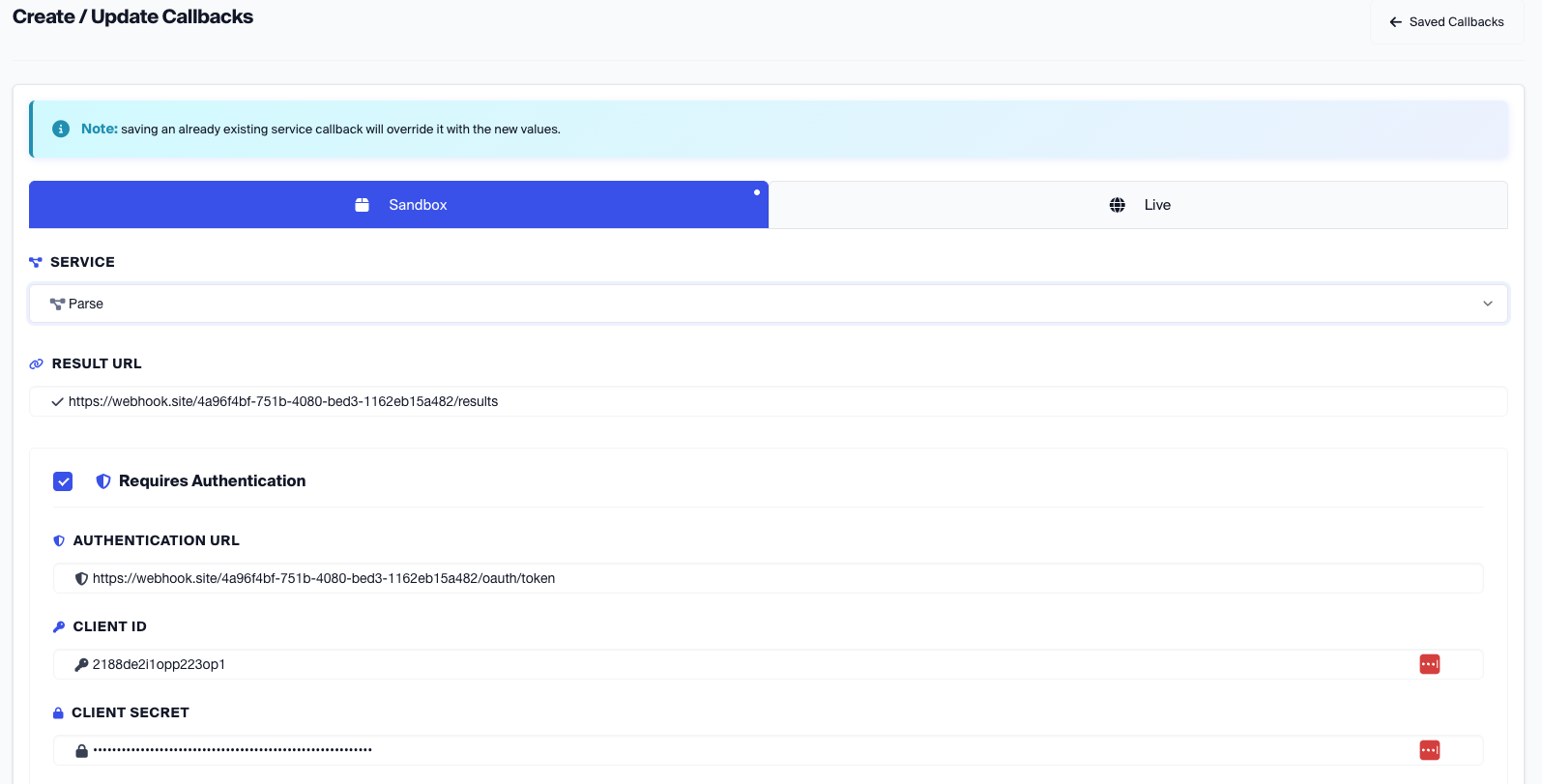
Register your webhook at https://api-portal.prestatech.com/callbacks. Supports OAuth or API key auth. Webhook called with same schema as parse results.
Step 3 — Running cashflow analysis (PLEND report)
3a — Start workflow process
Use the create workflow endpoint. Input from Step 2 output plus additional info (account holder, VAT, loan amount). Can combine PSD2 transactions and core banking data.
3b — Get workflow results
The response is an ID only (async process). Use the ID to fetch:
- PDF Report: GET plend-report
- JSON Report: GET workflow by ID
3c — Receive workflow results via webhook
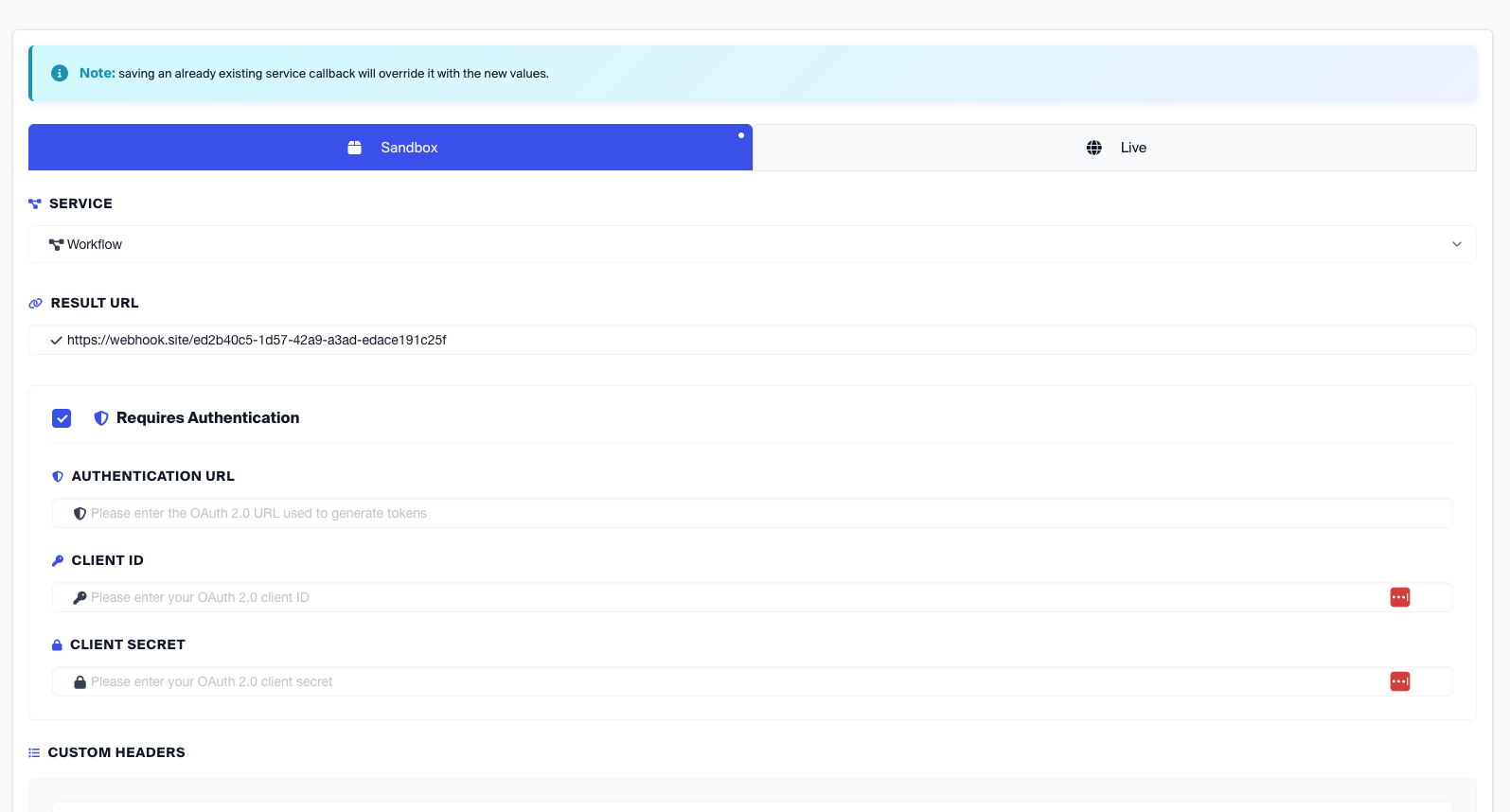
Register a "Workflow" type webhook at the portal. Authentication works the same way.